

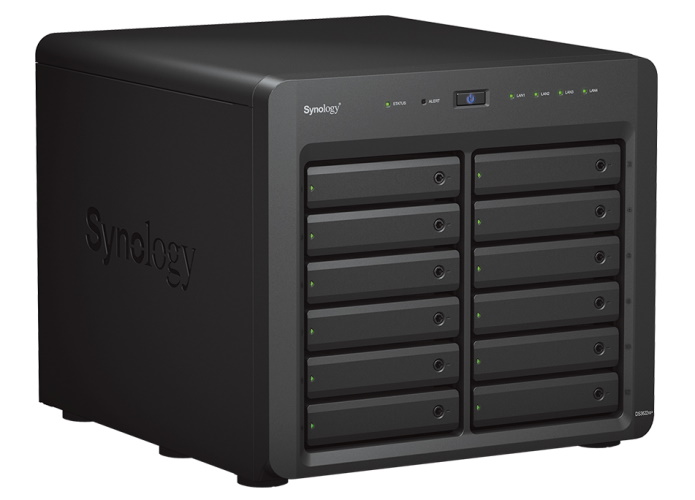
What Is a NAS and Why Buy One in 2026?
The best NAS devices of 2026 have turned network-attached storage into one of the most practical upgrades a household can make. A NAS is a dedicated box that plugs into your home network and holds your files centrally, so every phone, laptop and smart TV in the house can reach the same photos, videos and documents.
Cloud services such as Google Drive and iCloud charge you every month, and those fees climb as your library grows. A NAS asks for a single purchase and then costs you nothing extra for years. Your data stays in your own home, under your control, with no third party deciding privacy terms for you.
What separates a NAS from a plain external hard drive is redundancy and independence. Most NAS enclosures hold two or more drives and use RAID to mirror or stripe your data, so one failed drive no longer means lost family photos. A NAS also runs its own operating system, which means it can back itself up, run a media server, sync your cloud accounts and even host a website without any help from a computer.
Our Top Picks at a Glance
| Award | NAS | Best for | Approx. price |
|---|---|---|---|
| Best overall | UGREEN NASync DXP4800 Plus | Plex, Jellyfin, backups and fast networking in one box | $620–$660 |
| Best all-SSD | TerraMaster F8 SSD Plus | Silent, palm-sized performance without spinning disks | $680 |
| Best HDD NAS | Synology DiskStation DS1522+ | Small business storage on the finest NAS software | $1,903–$2,819 |
| Best for backups | Synology DS925+ | Set-and-forget reliability in the DSM ecosystem | ~$770 |
| Best hybrid | Asustor AS5404T | HDD capacity plus SSD speed in one unit | ~$530 |
| Best beginner | Synology DS224+ | First NAS buyers who want simplicity | ~$300 |
| Best budget | QNAP TS-233 | Cheap, quiet two-bay home storage | ~$199 |
| Best budget transcoder | UGREEN NASync DXP2800 | Entry-price Plex and Jellyfin transcoding | $355–$390 |
| Best value | TerraMaster F4-425 Pro | Most CPU and RAM per pound spent | ~$595 |
| Best high-capacity | UGREEN NASync DXP8800 Plus | Eight bays for serious media libraries | ~$1,370 |
The Best NAS Devices of 2026
UGREEN NASync DXP4800 Plus — Best Overall
UGREEN arrived in the NAS market with a simple trick: Intel x86 hardware at prices the established brands cannot match. The DXP4800 Plus is the box that does everything most people want without compromise.
Its Intel Pentium Gold 8505 supports QuickSync, so Plex and Jellyfin transcode video in hardware, including AV1 decoding. It takes up to 64 GB of DDR5 RAM, ships with both 10GbE and 2.5GbE network ports, and offers four drive bays plus two M.2 NVMe slots. UGREEN’s UGOS Pro accepts any CMR drive and any brand of NVMe with no compatibility lock, and if you ever outgrow the software, the x86 hardware happily boots TrueNAS SCALE or Unraid instead.
Who it’s for: the mainstream buyer who wants files, backups, Docker containers and a transcoding Plex server in one four-bay box, with fast networking and no vendor lock-in drama.
Skip it if: you specifically want Synology’s DSM software ecosystem, or you only need two bays and would rather spend less on the DXP2800 below.
TerraMaster F8 SSD Plus — Best All-SSD NAS
This is the first eight-bay NAS built entirely for SSDs, and it changes what a desktop NAS can be. With no spinning disks inside, the F8 SSD Plus is no bigger than a hardback book and runs at a whisper-quiet 19 dB even under full load.
The hardware is serious: an eight-core Intel N305 processor, 16 GB of DDR5 RAM, a 10GbE port, dual USB 3.2 ports, PCIe Gen 3 expansion and HDMI 2.0b output. Read and write speeds reach up to 1,024 MB/s, and with eight M.2 SSD slots filled it can hold 64 TB. Even simulated drive failures were taken in its stride during testing.
Who it’s for: buyers who want the reliability and speed of solid-state storage, a silent box for the living room or small office, and performance far beyond what spinning disks deliver.
Skip it if: you already own a stack of hard drives, or you need the cheapest possible gigabytes — SSDs still cost far more per terabyte.
Synology DiskStation DS1522+ — Best HDD NAS
If software decides your buying choice, the DS1522+ remains the benchmark. Synology’s DiskStation Manager (DSM) is the most polished NAS operating system in the business, and this five-bay unit pairs it with genuinely capable hardware.
It ships with enterprise-grade backup tools: Active Backup for Business covers Windows PCs, virtual machines and Microsoft 365, while Hyper Backup copies your files to major cloud providers for a proper 3-2-1 setup. Five bays expand to fifteen with add-on units, reaching up to 270 TB. It is also a certified storage target for VMware, Hyper-V and Citrix.
Who it’s for: small businesses and remote workers who want best-in-class software, rock-solid backup tooling and serious expansion headroom, and who are happy with hard drives.
Skip it if: you want a modest desktop unit — this is a professional-grade box at a professional-grade price.
Synology DS925+ — Best for Backups
The DS925+ earns its place on reputation and software alone. DSM remains the deepest NAS app catalogue anywhere, with the best backup tooling and photo management in the category. ECC memory support adds extra data integrity for users who store critical files.
After the 2025 backlash over Synology’s drive-lock policy, DSM 7.3 restored normal third-party drive support, so you can use WD Red Plus or Seagate IronWolf drives freely — though M.2 NVMe storage pools still require Synology-validated drives. The one hard limit: its AMD Ryzen V1500B has no integrated GPU, so this box cannot hardware-transcode video at all.
Who it’s for: buyers invested in the DSM ecosystem who value software polish, ECC and Synology’s backup suite over media transcoding.
Skip it if: Plex or Jellyfin hardware transcoding matters to you, or you want NVMe storage pools from third-party drives.
Asustor AS5404T — Best Hybrid NAS
The AS5404T bridges two worlds elegantly. Its four hard drive bays deliver raw capacity, while four M.2 SSD slots let you tier performance automatically or manually — fast SSDs for hot data, capacious HDDs for the archive.
There is an HDMI output that could move this unit from the server cupboard to the family room, dual 2.5GbE ports, and the ADM operating system with more than 200 applications in its App Central store. Reviewers consistently praise its ease of use, which is a genuine relief in a category where setup can intimidate newcomers.
Who it’s for: buyers who want the best of both storage worlds — HDD capacity for the bulk of their files and SSD speed where it counts.
Skip it if: you only want one type of storage, or a plain box without the gaming-PC styling suits you better.
Synology DS224+ — Best NAS for Beginners
The DS224+ is the classic first NAS. An Intel processor, expandable RAM and the full DSM software experience make it reliable, quiet and powerful enough for streaming and automatic backups, without demanding technical skill.
It supports Plex, Docker and cloud sync, so it grows with you beyond simple file storage. Synology’s DSM is the easiest and most polished operating system a beginner will meet, with a phone app that backs up your camera roll automatically.
Who it’s for: first-time NAS buyers who want a two-bay box that simply works — set it up once and trust it for years.
Skip it if: you already know you will store a lot. Two bays fill up faster than people expect, and stepping straight to a four-bay now saves buying twice.
QNAP TS-233 — Best Budget NAS
At around $199 without drives, the TS-233 is the cheapest honest way to build a private cloud at home or in a small office. An ARM processor and 2 GB of RAM keep it firmly in backup-and-files territory, but for that job it is quietly excellent.
It backs up Windows via NetBak Replicator and Macs via Time Machine, serves photos and documents to every device on your network, and runs almost silently. The 3.5-inch bays accept 2.5-inch drives too, so old laptop SSDs can get a second life.
Who it’s for: people who just realised an external drive does not protect their data properly and want a real backup machine without spending much.
Skip it if: you want to run heavy apps, transcode 4K video or serve demanding multi-user workloads — this modest unit is not built for that.
UGREEN NASync DXP2800 — Best Budget Transcoder
A first NAS should not need to cost a fortune, but it should be able to grow with you — and in 2026 it really should transcode Plex. The DXP2800 manages both at an entry price that undercuts most two-bay rivals.
Its Intel N100 has QuickSync, so it hardware-transcodes media despite the budget badge. Two drive bays pair with two M.2 NVMe slots and a 2.5GbE port, and the full 64 TB of capacity is far more than most first-time buyers will ever touch. Advanced encryption and user account management keep your data properly protected.
Who it’s for: first-time buyers who want a small, quiet box for backups and a modest Plex library, without giving up hardware transcoding to hit the price.
Skip it if: you already store terabytes of media. Two bays fill up fast, and the four-bay DXP4800 Plus above is the saner long-term buy.
TerraMaster F4-425 Pro — Best Value 4-Bay NAS
The F4-425 Pro packs the most processing power of any four-bay in its price class. Its eight-core Intel Core i3-N305 chews through multiple transcodes and Docker workloads, it ships with 8 GB of DDR5 expandable to 32 GB, and the Intel iGPU handles hardware media transcoding with ease.
Dual 5GbE ports aggregate to 10Gb of throughput, and at around $595 it costs less than the DXP4800 Plus while shipping the stronger CPU. TerraMaster’s TOS software has matured into a usable — if less polished — alternative to DSM.
Who it’s for: value-focused buyers who want the strongest CPU and the most RAM per pound, and who are comfortable trading some software polish for a hardware bargain.
Skip it if: you need a single built-in 10GbE port, or you prefer the larger app catalogues of DSM or QTS.
UGREEN NASync DXP8800 Plus — Best High-Capacity NAS
When four bays will not hold enough, the DXP8800 Plus scales up hard. Eight drive bays, a 10-core Core i5-1235U with Iris Xe graphics — the strongest transcoding engine in this lineup — up to 64 GB of DDR5, dual 10GbE ports and even two Thunderbolt 4 ports.
Filled with eight high-capacity drives it builds a pool measured in the hundreds of terabytes, and the Iris Xe handles several simultaneous 4K transcodes without breaking a sweat. At around $1,370 it is a serious investment, sold directly by UGREEN.
Who it’s for: heavy media libraries, multi-user households, or anyone who wants room to grow a large pool with the fastest networking and transcoding on offer.
Skip it if: you do not need more than four bays. This is a big step up in price, and most homes never fill eight bays.
How Many Drive Bays Do You Need?
Two bays suit most homes and most first NAS purchases. They are affordable, compact and support RAID 1 mirroring, which protects your data against a single drive failure. For simple backups and file storage, two bays are genuinely all you need.
Four bays are the home default for anyone who plans to grow. They unlock RAID 5, which protects against one drive failure while wasting far less capacity than mirroring, and they give you room to add larger drives later without starting over.
Six or eight bays belong to large media libraries, small offices and data hoarders. They support RAID 6 — surviving two simultaneous drive failures — and let you build pools into the hundreds of terabytes. If you buy more bays than you need, remember you cannot add bays to a box later; buy for where you will be in three years.
HDD vs SSD: Which Storage Media Should You Choose?
Traditional hard disk drives remain the most cost-effective option for NAS duty. A 4 TB HDD costs a fraction of an equivalent SSD while offering ample room for family photos, videos and documents, and per-terabyte prices keep HDDs the only sensible choice for multi-terabyte archives.
SSDs offer faster access times, better reliability with no moving parts, lower power draw and — in all-SSD units like the TerraMaster F8 SSD Plus — near-silent operation. SATA SSDs deliver quick access for frequent files, while NVMe drives push transfer rates far beyond anything spinning disks achieve.
Many users take a hybrid approach: SSDs for frequently accessed files or as cache drives that speed up the whole pool, and HDDs for bulk media libraries and archives. When buying drives, check the NAS maker’s compatibility list first — most reputable brands publish one, and it saves painful surprises.
RAID Explained: How Your Data Stays Protected
RAID — Redundant Array of Independent Disks — combines several physical drives into one logical volume for improved performance, redundancy or both. It distributes data across disks in layouts called RAID levels, and choosing the right one decides how well your files survive a failure.
RAID 0 stripes data evenly across two or more disks for maximum speed, but it offers zero redundancy: if one disk dies, everything is lost. Use it only for temporary scratch space where speed matters and loss does not.
RAID 1 mirrors data identically across two or more disks. Every disk holds an exact copy, so one failure costs you nothing but the dead drive — at the price of halving your usable capacity. It is the ideal default for critical family photos and documents on a two-bay NAS.
RAID 5 stripes data with parity information spread across three or more disks. It survives a single drive failure while wasting only one disk’s worth of capacity, giving the best balance of performance, redundancy and storage efficiency for multi-bay units. One caution repeated by every expert: RAID is not a backup. A separate copy on another device or in the cloud remains essential.
What to Consider Before Buying a NAS
Start with your use case, because it decides everything else. Backups and file storage run happily on modest hardware; a Plex server demands hardware transcoding; video editing over the network wants fast ports; running virtual machines wants RAM and a strong CPU.
Budget realistically. The box is only half the purchase — every NAS here ships empty, and the drives often cost more than the enclosure. Four 10 TB NAS drives can run to nearly $2,000, so decide the drives in the same breath as the box.
Check the processor and memory. Video decoding, photo indexing and app hosting all lean on the CPU, and 8 GB of RAM is the comfortable minimum if Docker containers or media servers are in your plans. With memory prices elevated in 2026, buy the RAM you need already in the box rather than planning a cheap upgrade later.
Look at networking as the speed ceiling. 1GbE is fine for basic backups, 2.5GbE is now the baseline for large transfers and 4K streaming, and built-in 10GbE only matters if the rest of your network can feed it. Also consider noise and power: a device running 24/7 should idle between 5 and 25 watts, offer drive hibernation, and sit quietly if it lives in a bedroom or office.
Finally, weigh the software. A NAS is really a microserver, and its operating system — DSM, QTS, TOS, UGOS Pro or ADM — decides how pleasant backups, mobile apps, remote access and third-party software feel day to day.
NAS vs External Hard Drive: Which Should You Get?
An external drive connects to one device at a time, offers no redundancy and runs no apps — it is “dumb” storage, cheap and plug-and-play. A NAS connects to your network so every device can reach it simultaneously, protects data with RAID, runs independently of any computer, and serves files, media and backups to multiple users at once.
External drives still win on pure price per gigabyte and simplicity. But they fail silently: one dead drive means total loss. A NAS costs more and needs setup — RAID configuration, user accounts, network settings — yet it repays that effort with protection, remote access and services an external drive can never offer.
The deciding question is how much data you have and how much it matters. A few gigabytes that live happily on your laptop do not need a NAS. Terabytes of irreplaceable photos, or files that must be reachable from several devices, are exactly what a NAS is built for.
NAS vs Cloud Storage: Cost and Privacy Compared
Ownership is the core difference. With a NAS you own the hardware and your data never leaves your home. With cloud storage a company keeps your files in its data centres, and their privacy policies — not yours — govern access.
The cost structure flips over time. Cloud plans charge monthly or annually, and the fee grows with usage; a decade of family storage gets expensive. A NAS demands one purchase with optional upgrades, then runs for years. Vendors estimate a NAS lifespan of three to five years, but units routinely survive a decade, and you can let the box hibernate during long absences to extend its life.
Cloud storage wins on zero setup and access from anywhere with an internet connection. A NAS needs your home network up, takes some technical effort to configure, and remote access depends on your broadband. For most households, the winning move is both: a NAS as the primary store with an encrypted cloud copy as the off-site backup.
How to Set Up a NAS and Keep It Running
Physically, setup is simple: slide the drives into the tool-free trays, plug in Ethernet and power, then finish the rest through a web wizard. Most modern NAS units walk you through drive initialisation, RAID selection and user accounts in under half an hour.
Then do the jobs that keep a NAS healthy. Enable automatic security updates and two-factor authentication, especially if you open remote access — past ransomware campaigns targeted exactly the exposed QNAP boxes owners had forgotten to patch. Schedule periodic SMART drive health checks so a dying disk gets replaced before it takes the pool with it.
Keep it cool and clean. Dust is the enemy of small fans, and heat shortens drive life. A cupboard with airflow beats a sealed one, and if the box lives in a living room, check noise figures before you buy. Back up the NAS itself to an external drive or a cloud service — redundancy inside the box does not protect against fire, theft or flood.
What Hard Drives Should You Put Inside?
Buy NAS-rated drives, not ordinary desktop disks. NAS drives are built for 24/7 vibration-heavy operation, and the two names every expert repeats are Seagate IronWolf (and IronWolf Pro) and WD Red Plus. For SSD pools, WD Red SSDs and WD Red M.2 models are the safe choices.
Check the recording technology before you buy: CMR drives are the reliable pick for RAID, while SMR drives can wreck RAID rebuilds and should be avoided. Prices on drives move weekly during supply squeezes, so buy the box and the drives together rather than budgeting them separately.
Size your pool honestly. Photos and documents need 4–8 TB, 4K movie libraries start at 16 TB, and security camera footage pushes toward 24 TB and beyond. Check the vendor’s drive compatibility list — most reputable brands publish one — because Synology in particular has had a rocky recent history of restricting third-party drives, and buying a listed model avoids the headache entirely.

Frequently Asked Questions
Is a NAS device the same as an external hard drive?
No. A NAS is an internet-connected device on your home network that lets remote users and multiple devices access data from other locations. An external hard drive simply stores information for one directly connected device, and may or may not offer any remote access.
Do I actually need a NAS, or is an external drive enough?
It depends on how much data you have and how precious it is. External drives are fine for a few gigabytes, but if your needs stretch to terabytes — or your files need to be accessible across several devices — a NAS earns its place. It also protects against drive failure, which no external drive does.
What is RAID, and which level should I use?
RAID combines multiple drives into one volume for performance or redundancy. RAID 1 mirrors two drives for maximum safety, RAID 5 stripes with parity across three or more for the best balance of capacity and protection, and RAID 0 stripes for speed with no safety net. Most home users should choose RAID 1 or RAID 5 and keep a separate backup as well.
Should I choose HDDs or SSDs for my NAS?
HDDs give you the most terabytes per pound and remain the right choice for bulk storage. SSDs bring speed, silence, durability and lower power use, making them ideal for performance pools and quiet rooms. A hybrid — SSD cache with HDD bulk storage — gives many users the best of both.
Which NAS is right for me?
Match the box to your use case. Media streaming and Plex need an Intel chip with QuickSync for hardware transcoding; backups and file storage run happily on a budget two-bay; growing families and small offices should buy four bays for RAID 5 and expansion room. Then check software, networking and noise to finalise the choice.
Is a NAS difficult to set up for a beginner?
No — modern NAS setup is deliberately beginner-friendly. You slide drives into tool-free trays, plug in power and Ethernet, and a web wizard walks you through RAID selection and user accounts. Choosing how to use its features takes a little more time, but nothing like building a server.
Should I build my own NAS instead of buying one?
You can repurpose an old PC or build a very custom NAS with TrueNAS or Unraid, and hardware tinkerers will enjoy the flexibility and QuickSync support of a cheap Intel mini PC. But if you are new to PC building, buying an appliance NAS — with its polished software, small footprint and warranty — is the wiser route.
What is the difference between NAS and DAS?
NAS connects to your network over Ethernet, so many devices share it at once, and it runs its own operating system with apps for media, backups and remote access. DAS connects directly to one computer over USB or Thunderbolt — simpler and sometimes faster for single-user editing, but invisible to everything else on the network.
How long will a NAS last?
Vendors estimate three to five years, but a NAS can easily run for a decade. Watch for warning signs like sluggish performance and connectivity problems, let the box hibernate during long absences, and keep firmware updated. The drives usually need replacing before the enclosure does.
Will my NAS become obsolete quickly?
Technology always moves on, but a NAS ages gracefully — it stores files, not features. A well-bought box with a decent CPU and 2.5GbE networking will serve backups and media streaming for many years. Buy enough bays and RAM now, and obsolescence stays a distant worry.
Which hard drives do you recommend for a NAS?
Stick to NAS-rated drives: Seagate IronWolf or IronWolf Pro for spinning disks, and WD Red SSDs for solid-state pools. Buy CMR recording technology — never SMR, which can corrupt RAID rebuilds. Check your NAS maker’s compatibility list, since Synology in particular has flip-flopped on third-party drive support.
Is a NAS cheaper than cloud storage in the long run?
Yes, for anyone with serious storage needs. Cloud plans charge every month and rise with usage, while a NAS asks for a single purchase and then runs for years. The break-even point arrives sooner than most people expect — typically within a year or two for multi-terabyte households.
Final Verdict
The best NAS devices of 2026 leave no excuse for risking your data on a single drive. For most buyers, the UGREEN NASync DXP4800 Plus is the smartest purchase: hardware transcoding for Plex and Jellyfin, 10GbE networking, four bays and no drive-lock politics at a fair price.
Backups-first households who value software above all should take the Synology DS925+ for its unmatched DSM ecosystem. Silence seekers and speed lovers will adore the TerraMaster F8 SSD Plus. Budget buyers are spoiled: the UGREEN DXP2800 transcodes at an entry price, and the QNAP TS-233 covers pure backups for under $200.
Whatever you choose, buy the drives in the same breath as the box — an empty NAS is just a handsome paperweight. Your photos, videos and documents are irreplaceable; a NAS is the gadget that finally treats them that way.
Related reading: Best Smart Home Devices 2026 Top Picks For Every Room and Best Drones 2026 Top Picks For Every Budget And Skill Level
