

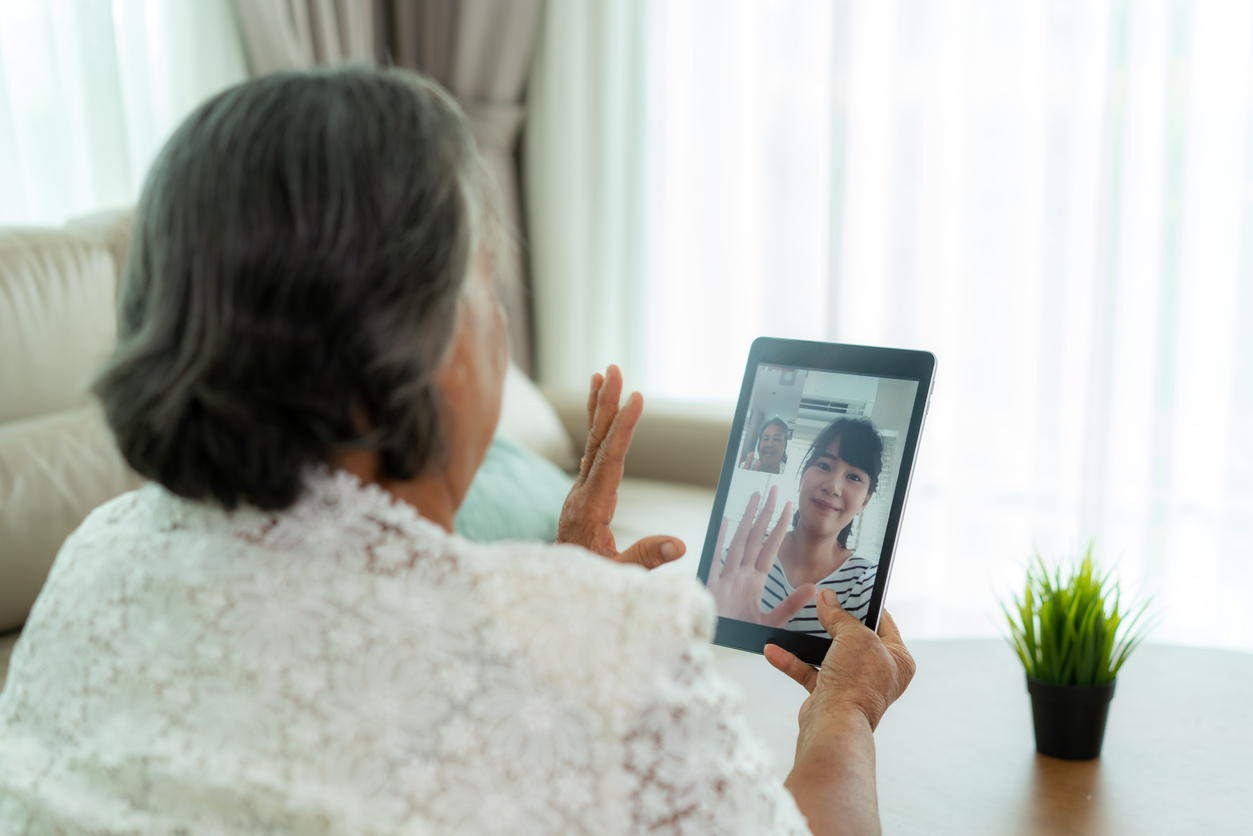
Buying the best tablets for seniors is about far more than gigahertz and megapixels. The question that actually decides whether the device ends up in daily use is a simple one: can a person in their seventies pick it up, tap one thing, and talk to their grandchildren without asking anyone for help?
That single test reorders everything reviewers usually measure. A bright, large screen beats a fast chip. A fingerprint unlock beats a clever password system. And a tablet that still receives security updates four years from now beats one that stops getting patches in two.
This guide pulls together the strongest 2026 recommendations from five specialist publications, including Digital Trends’ long-running senior tablet guide. Every pick below was evaluated for the real friction points older adults hit: unreadable default text, interfaces that reorganise themselves, video calls that need three apps, and batteries that die before dinner.
The Best Tablets for Seniors in 2026: Quick Verdicts
If you are short on time, here is the distilled view. Every model here has been singled out by multiple reviewers for senior-friendly use, and they cover every budget from under $100 to flagship money.
| Tablet | Standout Reason | Approx. Price |
|---|---|---|
| Apple iPad 11-inch (A16) | Best overall: simplest interface, strongest accessibility tools | ~$449 |
| Samsung Galaxy Tab A9+ | Best Android: big 11-inch screen, loud speakers, long updates | ~$250 |
| Amazon Fire HD 10 | Best budget: hands-free Alexa, Show Mode, unbeatable price | ~$140 |
| Lenovo Tab M11 | Best complete package: folio case and stylus in the box | ~$200 |
| Google Pixel Tablet | Best home hub: charging speaker dock included | ~$399 |
Now the full breakdown, with the honest trade-offs that the spec sheets leave out.
1. Apple iPad 11-Inch (A16) — Best Overall for Seniors
The iPad is the recommendation that requires the shortest explanation at the point of purchase and generates the fewest support calls afterwards. Reviewers who have walked a grandparent through remote setup over the phone report the same thing: once an Apple ID is signed in, iCloud photos, FaceTime contacts and the family photo album are simply waiting there.
Accessibility is where the iPad pulls decisively ahead. VoiceOver reads the screen aloud, Zoom magnifies any part of it, and the camera Magnifier turns the tablet into a digital magnifying glass for medicine labels and menus. Display Zoom and Larger Text make every icon and word on the entire screen bigger with a couple of taps, and AssistiveTouch replaces fiddly swipe gestures with a single large on-screen button — a genuine help for arthritic fingers.
For video calls, Center Stage on the front camera keeps the caller centred and composed as they shift position, so family see a composed face rather than a half-cut frame. The A16 chip means apps open on the first tap and the device will feel responsive for years, and Apple’s software support window — typically five to six years — is the longest in the category. Touch ID on the top edge unlocks the device with a thumb rest rather than a password, which sidesteps the “I forgot my login” problem entirely.
The honest downsides: it costs more than any Android or Fire option, and Apple ships no charger in the box — worth checking before you hand it over, since the recipient may not own a USB-C adapter. If you are comparing models within Apple’s range, our best iPads for 2026 guide breaks down the full line-up.
2. Samsung Galaxy Tab A9+ — Best Android Tablet for Seniors
If the family runs on Android — WhatsApp group chats, Google Photos, Google Meet for the weekly call — switching a senior to an iPad creates a re-learning burden that rarely pays off. The Galaxy Tab A9+ lets them stay in the ecosystem they already recognise, and Samsung’s setup wizard surfaces accessibility options during onboarding rather than hiding them four menus deep.
The 11-inch 90Hz display is the largest screen among the value picks, and at 1920×1200 it stays sharp at enlarged text sizes. Sound is the sleeper strength here: four stereo speakers are the loudest in this roundup, which matters for mild hearing loss or for watching in a room with background noise. The 3.5mm headphone jack accommodates existing wired headphones and hearing-aid cables without a dongle — a practical inclusion neither the iPad, the Pixel Tablet nor the Fire HD 10 offers.
Samsung commits to four Android version updates and five years of security patches, which is exceptional at this price and keeps the device safe through the years it will actually be used. The 7,040mAh battery reliably covers ten to twelve hours of mixed use, and microSD expansion means photos and downloaded movies never fill the device.
The main limitation is the front camera: adequate in daylight but soft in poor lighting, with no auto-framing. If video calls are the primary use and the family is not on FaceTime, the Pixel Tablet below is worth the step up. Also note the 8GB RAM model is meaningfully smoother than the 4GB base version for very little extra money.
3. Amazon Fire HD 10 — Best Budget Tablet for Seniors
At around $140 — frequently less on sale — the Fire HD 10 is the tablet most seniors actually start with, and reviewers consistently say it is the right call for first-time users and fixed-income budgets. The 10.1-inch Full HD screen is sharp and clear, and the 12-to-13-hour battery is the longest in this roundup.
What elevates it from “cheap tablet” to “senior-friendly tablet” is Alexa. Hands-free voice control means a person with shaky hands or declining vision can say “Alexa, call my daughter” from across the kitchen without touching the screen at all. On a charging stand, Show Mode turns it into an Echo-style smart display with a large clock, rotating family photos and the news read aloud — several reviewers call this a categorically different daily experience rather than an incremental convenience.
The trade-offs are real and should be stated plainly. There is no Google Play Store: YouTube, Google Photos, Google Meet and many health apps are simply unavailable unless sideloaded, which a senior will not do alone. If the family’s communication runs through anything Google or Apple, that wall appears on day one. Lock-screen ads also appear by default, though they can be removed for a small one-time fee — treat that as part of the purchase price.
4. Lenovo Tab M11 — Best Complete Package
Every other tablet on this list triggers an immediate accessories shopping trip. The Tab M11 skips it: a folio case with a built-in stand is in the box, stylus support works out of the gate with no Bluetooth pairing, and the aluminium frame is backed by IP52 splash resistance — a kitchen-counter spill becomes an inconvenience, not a replacement.
The 11-inch 90Hz display handles daily tasks smoothly, and the front 8-megapixel camera was the clearest of the budget Android options in side-by-side testing, producing detailed, well-focused video calls in ordinary household lighting. Dolby Atmos tuning gives clear, room-filling audio, and the headphone jack is present. Lenovo’s Android skin stays close to stock, which has a concrete benefit: a family member can guide a senior through settings over the phone using Google’s own documentation as a reference.
It runs Android 13–15 with four years of security patches — a shorter runway than Samsung’s, but adequate at this price. Skip the 4GB RAM configuration in favour of the 8GB model, and confirm whether a charger is included in your retail region before gifting.
5. Google Pixel Tablet — Best Home Hub for Seniors
The Pixel Tablet is built around a behaviour seniors already exhibit: leaving the tablet on the table rather than carrying it around. The charging speaker dock included in the box snaps the tablet into place magnetically and triggers Hub Mode — an always-on display showing Google Photos slideshows, a readable clock, weather and Google Home controls. Incoming Google Meet calls announce themselves on the dock. It is a permanently present communication surface, not a device that gets lost in the sofa cushions.
The Tensor G2 chip with 8GB of RAM makes this the fastest-feeling Android option here, and the 2560×1600 display at 276ppi is the sharpest panel of the five — enlarged text stays crisp rather than softened, which matters for reading comfort. Continuous Framing on the front camera tracks the caller automatically, matching what Center Stage does on the iPad. Google Assistant handles natural requests — “show me last Christmas photos,” “remind me about my pills at noon” — accurately on the first attempt.
Two honest caveats: there is no headphone jack and no microSD expansion, so hearing-aid users need a USB-C adapter and storage tops out at 256GB. It is also the heaviest handheld of the group at 490 grams, though the dock removes that concern for most of the day.
What to Look for When Buying a Tablet for a Senior
Forget the spec wars. Here is what genuinely predicts comfortable daily use after 60.
Screen size and readability
Presbyopia — the gradual loss of near focus — starts around age 45 and affects nearly everyone past 60, which makes small default text not just inconvenient but genuinely unreadable. An 11-inch display at or above 200 pixels per inch gives enough room to enlarge text substantially while keeping tap targets large and menus legible. Anything under nine inches becomes a daily negotiation between readable text and visible context.
Beyond diagonal inches, pixel density and brightness matter just as much: a dim or low-resolution panel loses legibility in a sunlit room no matter how large the text is set. Glare is the quiet enemy — most seniors use tablets in kitchens and living rooms, where glossy screens reflect ceiling lights and windows continuously. A laminated display (no air gap under the glass, as on the iPad Air) cuts that glare meaningfully, and a matte anti-glare screen protector helps further.
Simplicity and accessibility settings
Every tablet ships with accessibility tools — larger text, high-contrast modes, screen readers, voice navigation. What separates them is how fast those settings surface. Some tablets prompt for them during first-time setup; others bury them four sub-menus deep, discoverable only by someone who already knows they exist. For a device being set up by a family member over a video call, that onboarding friction is decisive.
Equally important is stability after setup: a home screen that reorganises itself after an accidental long-press turns every family visit into a reset session. iPadOS Guided Access can lock the display to a single app, Fire OS handles it through profiles, and Android offers app pinning — the method matters less than whether it holds.
Sound, voice control and video calls
Hearing tends to degrade with age, and many seniors rely on speakers more than reviewers acknowledge. Loud, clear quad-speaker setups reduce the need for a separate speaker, and a headphone jack keeps wired hearing-assist devices simple to connect.
For arthritic fingers or early motor difficulties, voice control is not a convenience feature — it is an access route. Saying “call my son” to a device on the counter is a fundamentally different experience from unlocking, navigating and tapping precisely. Alexa on the Fire HD 10 works hands-free without the display even being on; Google Assistant is equally capable in connected Google households; Siri handles most requests well but wants the screen active for anything involving personal data.
Front-camera placement shapes every video call. A camera on the long edge sits at the natural top when the tablet rests on a stand in landscape — the position seniors default to. Auto-framing features (Center Stage, Continuous Framing) matter far more than megapixels here, because they compensate for the fact that nobody on this end of the call is thinking about framing.
Battery, weight and durability
Seniors are less likely to carry a charging cable around the house or reliably plug in before bed. Every tablet on this list reaches ten hours of realistic use, but the difference between ten and thirteen hours is real when the device is forgotten on the kitchen table all morning. Fast top-ups also matter: a tablet that regains a usable charge quickly is more forgiving than one needing hours of plugged-in time after a missed overnight charge.
Weight is the physical specification reviewers most underweight for this audience. Held in bed or on a sofa arm, even a 490-gram tablet creates real strain for reduced grip strength or wrist sensitivity — which is why the sub-300-gram iPad Mini and a charging dock both earn their place as solutions. If you need a refresher on the core buying criteria, our complete tablet buying guide for 2026 covers screen, performance and battery selection in detail.
Security, scam protection and software updates
A tablet bought as a gift today may still be someone’s primary device five years from now. Security patches and OS updates are what keep it safe during that time — a tablet receiving no updates by year three is accumulating vulnerabilities its owner will never notice. Prioritise long support windows: Apple’s five-to-six years, Samsung’s four version updates plus five security years, or Amazon’s typically three-to-four-year Fire OS schedule.
Seniors are disproportionately targeted by online scams, so this matters more than most guides admit. Tightly reviewed app stores (Apple’s especially) and current security patches form the real defence. It is also worth setting safe browsing boundaries during the initial setup — a few minutes of configuration now prevents painful phone calls later.
iPad vs Android vs Fire: Which Ecosystem Fits Your Family?
This is the question to answer before any spec is read. Map the family’s current apps against each platform first, because switching ecosystems for a senior creates a support burden that rarely goes away.
Choose the iPad if the family uses iPhones, shares an iCloud photo library, and calls over FaceTime. Setup takes about fifteen minutes, remote management through Family Sharing lets an adult child install apps and share albums without a home visit, and Apple’s phone and in-store support is the strongest safety net in the industry.
Choose the Samsung Galaxy Tab A9+ or Lenovo Tab M11 if the household runs on Android and Google apps — WhatsApp, Google Photos, Google Meet. Staying in the familiar ecosystem is worth more than any single feature, and Google Family Link gives parents and adult children useful remote-management tools.
Choose the Amazon Fire HD 10 if the household is built around Prime, Alexa and Audible and nobody needs Google or Apple apps. For that specific situation it is the simplest and cheapest path — but be honest about the app list before deciding, because the Fire is only a limiting choice if the family’s essential apps are unavailable on it.
Simple rule of thumb: if the senior is brand new to all of it, the iPad or the Fire HD 10 are the two safest starting points. Match the device to the person’s habits, not to the reviewer’s preferences.
How to Set Up a Tablet for a Senior: 5 First Steps
Buying the right tablet is half the battle. A good setup makes the difference between a senior who loves the device and one who never turns it on.
- Increase the font size immediately. Do this before anything else — do not let them squint at default settings. iPad: Settings → Display & Brightness → Text Size, then Larger Text. Samsung: Settings → Display → Font Size and Style. Fire: Settings → Accessibility → Font Size.
- Turn on the voice assistant and practise it. Say “Hey Siri,” “Hey Google” or “Alexa” and ask something simple. Once voice commands feel natural, the touchscreen becomes dramatically less intimidating.
- Enable automatic brightness and accessibility tools. Auto-brightness keeps the screen comfortable in any lighting; turn on Zoom, high-contrast text and the screen magnifier now so they are ready when needed.
- Declutter the home screen and pre-install the essentials. Put video calling, photos, weather and news on the home screen and remove everything else. Set up FaceTime contacts or Zoom before gifting — nothing frustrates a new user more than failing at video calls on day one.
- Use simple security. Face or fingerprint unlock instead of typed passwords, automatic updates switched on, and the tablet connected to home Wi-Fi with the first update cycle completed before it is handed over.
Useful Accessories for a Senior’s Tablet
A few affordable additions genuinely improve daily use. A protective case with a built-in stand or handle prevents drops and props the screen at a readable angle for video calls without anything being held. A tablet stand on the desk or kitchen counter serves the same hands-free purpose for longer sessions.
A stylus helps anyone with arthritis or shaky hands tap precisely without finger friction — the Lenovo Tab M11 conveniently includes one. A Bluetooth keyboard changes email and messaging from a chore into a pleasure for seniors who like to write. And for anyone relying on audio, a small Bluetooth speaker covers the hearing gap that even good tablet speakers cannot.

Frequently Asked Questions
What is the easiest tablet for a senior who has never used one before?
For an Apple family, the iPad: iCloud Photos and FaceTime arrive pre-configured the moment an Apple ID is signed in, and there is genuinely little else to set up for everyday uses. For an Android family, the Samsung Tab A9+ has the most approachable initial setup of the Android options. For a Prime household, the Fire HD 10 can be operated almost entirely by voice from day one.
Does a tablet need Wi-Fi to work?
Not for everything. Offline books, downloaded streaming episodes, stored photos and music all work without a connection — the Fire HD 10 is especially forgiving here thanks to Prime Video’s generous offline downloads. Anything real-time — video calls, live streaming, voice assistant requests, news — needs active Wi-Fi, so reliable home internet is the practical prerequisite for the features seniors value most.
Can family members help manage the tablet remotely?
Yes, and this is what turns a tablet from a one-time gift into a continuous connection. Apple Family Sharing lets an adult child install apps, manage Screen Time and share photo libraries from their own iPhone. Google Family Link handles similar functions on Android, and Amazon Household shares content across Fire devices. For most families, the ecosystem they already use is the better remote-management framework.
What screen size is best for seniors with vision problems?
Ten inches is the minimum for meaningful text scaling, and the 10-to-13-inch range offers the best balance of readability and portability. For mild to moderate vision loss, any 10-inch tablet with good text scaling works; for significant loss, the largest screen — such as a 13-inch iPad Air or the 12.7-inch Lenovo Tab P12 — pulls ahead. Pair it with a stand so the screen sits at a comfortable distance without being held.
Are voice controls useful for elderly users?
Extremely. Siri, Google Assistant and Alexa can place calls, send messages, set medication reminders, check the weather and open apps without reading small text or finding tiny buttons — essential as vision declines. Make sure the tablet supports a hands-free wake word so the senior does not need to touch the device to start.
Is the Amazon Fire HD 10 too limited compared to the others?
Limited for some households, ideal for others. It is a strong, straightforward choice when the family lives inside Prime, Alexa and Audible. But if any essential app — YouTube, Google Photos, Google Meet, WhatsApp — sits outside Amazon’s ecosystem, the Fire creates friction most seniors will not resolve alone. Check the family’s actual app list before deciding.
How long should a senior’s tablet last?
Four to six years is realistic for daily light use, with software support as the binding constraint rather than hardware wear. Apple’s five-to-six-year window leads, Samsung commits four version updates and five security years on the Tab A9+, and Amazon updates Fire OS for roughly three to four years. For streaming, calls and reading, the device will almost certainly outlast its support window rather than wear out mechanically.
Does Medicare cover a tablet for a senior?
Standard consumer tablets are generally not covered by Medicare as durable medical equipment. Some Medicare Advantage plans may cover assistive technology when prescribed by a doctor for a specific condition, and specialised low-vision devices prescribed by an ophthalmologist can qualify. Check with the specific plan — and with the local Area Agency on Aging for state-level assistive technology benefits.
Final Verdict
There is no universally perfect tablet for every senior — the right choice follows the person, the household ecosystem and the budget. But any tablet on this list is a genuine upgrade over a small phone screen: clearer video calls with family, comfortable reading, telehealth and medication reminders, and an entertainment centre that fits in a lap.
Start with the budget, identify the single biggest need — reading, video calls, voice control or simplicity — and match the ecosystem to the family you already are. The tablet that gets used every day is infinitely better than the perfect tablet that stays in its box.
