

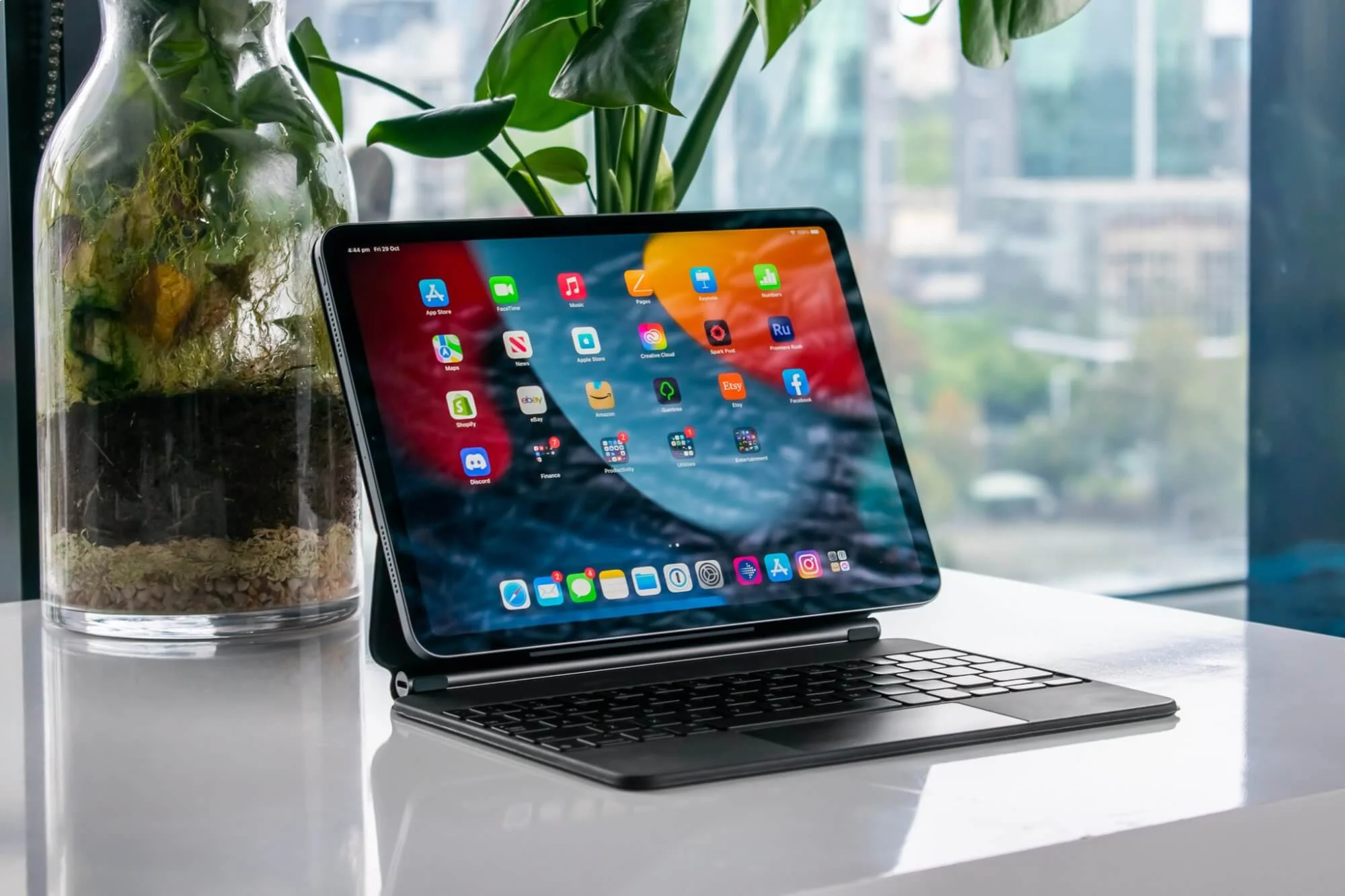
An iPad straight out of the box feels incomplete. It’s a brilliant piece of glass, but without the right gear it’s basically a big iPhone — no keys to type on, one lonely port, a screen too slippery to write on, and a battery that gives up halfway through a long day. The best iPad accessories in 2026 each fix one specific limitation, and the trick is buying the ones that match your routine instead of outfitting a fantasy workflow. Here’s what actually earns its place.
The Best iPad Accessories Start With the Problem, Not the Product
Every accessory on this list removes one constraint: the keyboard fixes typing, the stylus fixes input precision, the hub fixes the single port, the stand fixes your neck, the charger fixes dead batteries. None of them is worth buying on spec.
The smartest approach: start with your iPad and one core accessory, then live with it for two weeks before buying anything else. Most people discover their real needs fast — the note-taker realizes the glass is too slippery, the writer realizes the on-screen keyboard won’t survive essay season, the traveler realizes one port isn’t enough. Buy the accessory that solves the friction you actually feel, and skip the rest until it hurts.
One more rule before anything else: accessory compatibility is model-specific and changes constantly. The Apple Pencil, keyboards, and fitted cases are all tied to your exact iPad generation, screen size, and chip — a keyboard built for one generation may not fit the next. Check your model first; it’s the boring step that saves you from an expensive return.
Best Stylus: Apple Pencil and the Budget Alternatives
The stylus changes what an iPad is for more than any other accessory. With imperceptible delay, pressure sensitivity that thickens lines as you press harder, and tilt recognition, it turns the tablet into a sketchbook, a markup tool for PDFs, and a handwriting machine for notes and signatures.
Apple sells four Pencils and they are not interchangeable — the wrong one simply won’t pair. The Pencil Pro ($129) is the pick for recent M-chip iPad Pro and Air models and the latest mini, adding hover detection, a squeeze gesture to switch tools without tapping the screen, barrel roll, and Find My support. The second-generation Pencil covers older Pro, Air, and mini models with magnetic charging and double-tap tool switching. The USB-C Pencil ($79) is the cheapest way in for recent USB-C iPads, and the first-generation model serves only the oldest tablets via Lightning.
If your iPad is a recent M-chip model, get the Pro. On a tighter budget with an older USB-C iPad, the USB-C Pencil does the job for $50 less. And if you only need a stylus for basic note-taking rather than art, third-party options like the Logitech Crayon deliver excellent latency and accuracy at a lower price — plus, refurbished Apple Pencils with warranty routinely sell for around 37% off, so check the refurbished market before paying full price. Whichever stylus you choose, a thicker slip-on grip makes long writing sessions far more comfortable.
Best Paper-Feel Screen Protectors
Here’s the problem every stylus owner hits within a week: the iPad’s glass is incredibly slippery. Handwriting looks messy, your hand cramps from micro-correcting, and sketching feels disconnected from the stroke. Paper-feel protectors fix this by adding a textured layer that creates drag against the stylus tip, simulating real paper.
The tradeoff is always the same: you gain drawing precision and writing comfort but lose a fraction of display clarity and brightness, since the matte texture diffuses light. The cleverest versions sidestep this permanently-versus-temporary dilemma with magnetic attachment — snap the textured layer on when you need to draw or take notes, pull it off in seconds when you want full color accuracy for films or photo editing. The texture even produces a faint scratching sound like a felt-tip pen on heavyweight paper, which oddly makes note-taking feel more intentional.
Beyond the creative benefits, these protectors add real physical protection and anti-glare treatment that cuts reflections without interfering with Face ID — genuinely useful outdoors or under harsh office lighting. For artists and heavy note-takers, this is the single highest-impact upgrade after the stylus itself.
Best Keyboards: Turning the iPad Into a Work Machine
Adding a keyboard is the fastest way to convert the iPad from a media screen into a productivity tool. The premium integrated option floats the iPad on a cantilevered hinge with a function row, haptic trackpad, and pass-through USB-C charging — typing feel close to a MacBook and trackpad gestures that work natively in iPadOS without reaching for the glass. The downsides are the price, the weight, and zero edge protection.
The smarter value for most people is a detachable keyboard case: it connects through the Smart Connector (no Bluetooth pairing, no second cable to charge), offers backlit keys and a precision trackpad tuned for iPadOS gestures, and lets you pop the iPad out of the shell for reading or sketching, then snap it back for typing. Look for scissor-switch keys with around 1.4 mm of travel and a real retention solution for the Pencil — a stylus that pops off in a commute is a $129 loss waiting to happen.
For the desk-bound, there’s a third route: skip the case entirely and pair a raised stand with a separate Bluetooth keyboard and mouse. Which brings us to the desk setup.
Best USB-C Hubs and Stands for Desk Work
The iPad’s single USB-C port is its biggest limitation as a desktop replacement. One port can drive an external display, fast storage, and charging simultaneously — but only through a hub. The best hubs add 4K HDMI output, USB-C Power Delivery charging, USB-A data, SD and MicroSD card readers, and sometimes Ethernet and a headphone jack through that one connection. Photographers can import from a camera while driving an external display; everyone else finally stops choosing between charging and peripherals.
The most elegant versions build the hub into a foldable aluminum stand that cradles the iPad in portrait or landscape at a comfortable viewing height, with the cable routed beneath to keep the desk clean. A raised screen matters ergonomically: with the display at eye level, pair it with that separate keyboard and trackpad so you’re not reaching up to tap glass all day — your neck and shoulders will notice the difference within a week.
For a simpler fix, a sturdy foldable tablet stand with anti-slip padding props the iPad at adjustable angles for video calls, recipes, or Sidecar use next to a Mac, then folds flat for travel.

Best Chargers and Power Banks
Once hubs, keyboards, and secondary devices enter the bag, the single-port brick Apple includes stops being enough. A compact multi-port GaN charger that tops up the iPad, phone, and earbuds simultaneously is the smartest travel upgrade you can make — one high-speed block replaces three separate chargers. For the desk, a four-device charger with proper heat, over-voltage, and short-circuit protection clears outlet clutter for households full of Apple gear; our MagSafe charger roundup covers the magnetic options if your setup leans that way.
For days away from outlets, a slim 10,000mAh power bank with USB-C in and out slips into a bag or even a large pocket — recharge it with the same cable as your iPad — and high-speed output keeps top-ups quick during travel, commutes, and long study sessions.
Best Audio and Finishing Touches
For video editing, calls, gaming, and focused creative work in noisy places, active noise cancellation earns its keep. Apple’s earbuds pair instantly, switch automatically between iPhone, iPad, and Mac as you move between devices, and integrate with Siri — and the over-ear flagship adds serious sound for long sessions. Both show up refurbished with warranty at meaningful discounts, which is where the real savings are.
If you want room-filling sound, a compact IP67 waterproof Bluetooth speaker that shrugs off pool parties and camping trips rounds out the media side. And for protection on the move — without rehashing the full case debate — a slim everyday case plus a padded portfolio sleeve that carries the iPad, hub, charger, and mouse in one organized package keeps a travel setup from becoming a loose pile of cables. If you’re still deciding which tablet to accessorize, our breakdown of which iPad you should buy will help you match the hardware to your plans first.
How to Buy iPad Accessories Without Wasting Money
A final framework, distilled from everything above:
- Match gear to routine. Write daily? Buy the keyboard. Draw or take notes? Get the paper-feel protector and stylus first. Mostly watch video? A good magnetic stand beats everything else.
- Prioritize in order. Stylus first if you draw or annotate, keyboard if you write, hub if you plug in displays or camera cards, power gear if you’re mobile. Everything else waits until semester one is over.
- Check compatibility twice. Exact iPad generation, screen size, and chip — before you order anything fitted.
- Don’t overbuy day one. The accessories that end up abandoned in a drawer are the ones bought for an imagined workflow. Two weeks of real use tells you more than any buying guide.
iPad Accessory FAQs
Do all iPad accessories work with every iPad?
No. Many are model-specific — especially the Apple Pencil, Magic Keyboard, keyboard cases, and fitted protective cases. Always check your exact iPad generation, screen size, and chip before buying. A case or keyboard for one generation often won’t fit the next.
Which Apple Pencil is compatible with my iPad?
It depends on your model. The Pencil Pro works with recent M4/M5 iPad Pro, M2/M3/M4 iPad Air, and the A17 Pro mini. The 2nd-generation Pencil covers older Pro, Air, and mini models. The USB-C Pencil fits most recent USB-C iPads at the lowest price. The 1st-generation Pencil is for older Lightning-era models only. The four are not interchangeable.
Is the Apple Magic Keyboard worth the price?
If you type on your iPad every day and want the closest thing to a laptop, yes — the keyboard, trackpad, function row, and pass-through charging genuinely change the device. If you want more protection, a detachable setup, or a lower price, a third-party keyboard case makes more sense.
How do I make my iPad screen feel like paper?
Add a matte paper-feel screen protector. It adds friction under the Apple Pencil so writing and drawing feel controlled instead of slippery. Magnetic versions are ideal because you can snap them on for pencil work and remove them for full-clarity media viewing.
What are the best iPad accessories for a desk setup?
A raised stand, a Bluetooth keyboard, a trackpad or mouse, a USB-C hub, and a multi-port charger. The stand brings the screen to eye level while the keyboard and trackpad keep you from reaching up to touch the display all day.
What iPad accessories are best for travel?
A slim protective case, a portfolio sleeve for the hub/charger/mouse, a compact multi-port charger, and secure Apple Pencil storage. A magnetically attached Pencil alone gets knocked off in a crowded bag, so a case with a real retention slot matters.
