

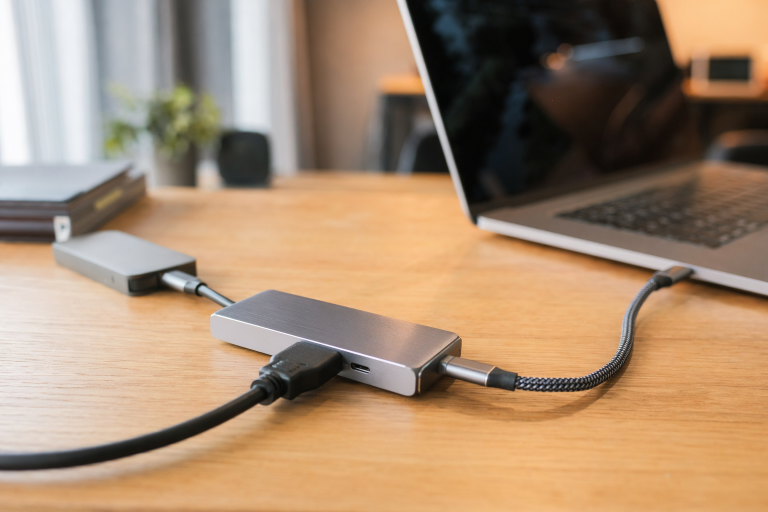
The best USB-C hubs 2026 has to offer solve the defining annoyance of modern laptops: two USB-C ports and nothing else. One cable into a good hub brings back your monitor, wired networking, card readers and peripherals — and today’s picks are far better than the flimsy 4K@30Hz dongles of the early MacBook era, with proper 4K@60Hz video, 10Gbps data, up to 140W of pass-through charging and pocketable aluminium bodies.
After comparing port layouts, data speeds, display support, charging behaviour and real-world reliability, these are the eleven hubs and docks genuinely worth your money — from everyday carry to dual-monitor workstations and full Thunderbolt 5 desktop replacements.
Quick Picks: The Best USB-C Hubs 2026 at a Glance
- Best Overall — Anker 555 USB-C Hub (8-in-1): 4K@60Hz HDMI, 10Gbps data, Gigabit Ethernet, card readers and pass-through charging in one balanced package.
- Best for Busy Desks — UGREEN Revodok Pro 9-in-1: nine ports, dual 10Gbps USB-C data and a genuinely useful hardware screen-lock button.
- Best Budget — Hiearcool 7-in-1: 100W pass-through and a 2.4 oz body; the 4K@30Hz cap is the trade-off.
- Best for Dual Monitors (Hub) — Anker 553: two HDMI outputs plus Ethernet and charging for two-screen workstations.
- Best for High-Power Laptops — Plugable USBC-9IN1E: the only hub here with 140W PD 3.1 input and 125W to the host.
- Best for Mac — Satechi Multiport Adapter V2: Apple-matching finishes and a proven multi-year durability record.
- Best Compact Budget — Anker 341 (7-in-1): Anker reliability and 85W charging for less, minus Ethernet and 60Hz video.
- Best Dual-Display Dock — Baseus 12-in-1: simultaneous dual 4K@60Hz via HDMI and DisplayPort.
- Best Thunderbolt 5 Dock — CalDigit TS5 Plus: 20 ports, 140W charging and the only 10GbE in the roundup.
- Best Compact Thunderbolt 5 Dock — Anker Prime TB5: 14 connections in a smaller chassis.
- Best for Business — Belkin Connect Universal Pro: dual 4K@60Hz, 100W PD and a 2-year warranty for managed fleets.
How to Choose the Best USB-C Hub in 2026
Do not buy on the “-in-1” number in the product name. A 12-in-1 with slow data ports and 30Hz video is a worse purchase than a well-built 7-in-1. Start from what actually plugs in on a normal workday and treat every extra port as a specification, not a selling point.
USB-C Hub vs Docking Station: What’s the Difference?
A hub is compact and portable: it expands one USB-C connection into several ports for everyday use and travel. A docking station is a desk-based solution for a permanent setup — more ports, multiple display support, higher power delivery and usually its own power brick. A hub is what most people need; a dock is what a dual- or triple-monitor home office needs. A Thunderbolt dock goes further still, with up to 80Gbps bandwidth and native dual 4K display support on Apple Silicon — only step up when your display count or bandwidth genuinely demands it.
Ports, Power Delivery and Data Speeds
Judge the working port mix, not the headline count: how many usable ports remain when the PD input is occupied by your charger and the HDMI is driving a monitor. For most users that means at least two USB-A ports and one USB-C data port, and card readers placed on a different face from the USB-A ports make the daily card-swap workflow noticeably smoother.
On charging, the printed wattage is normally the hub’s PD input rating — the hub keeps roughly 10–20W for itself, so “100W PD” usually means around 85W out to the laptop. Budget hubs pass 60–85W, the Anker 555 and UGREEN Revodok Pro pass 85W from a 100W input, the Hiearcool passes 100W, and the Plugable USBC-9IN1E accepts 140W PD 3.1 and delivers 125W. The practical rule: check your laptop’s charger wattage and subtract 15W for hub overhead. A MacBook Air is covered by any hub here; a 14-inch Pro wants at least 85W; a 16-inch model is only fully covered by the Plugable.
Do not forget the cable — a hub can only pass what its feed cable can carry, and anything above 60W wants an E-marker chip. Match it to one of the best USB-C cables for 2026 before blaming the hub for a shortfall.
On data speeds: USB 3.0/3.2 Gen 1 runs at 5Gbps, Gen 2 at 10Gbps. For everyday tasks 5Gbps is fine; a 50GB folder transfers in roughly three minutes at 5Gbps and under ninety seconds at 10Gbps with a fast SSD. One hidden variable is bus bandwidth sharing — when an SSD, a 4K display and a card reader run at once, they share the same upstream bandwidth, so 10Gbps per port does not mean 10Gbps on all ports simultaneously.
Display Output and the Dual-Monitor Question
The refresh rate matters more than the resolution number: 4K@30Hz makes scrolling look choppy, while 4K@60Hz is sharp and stable. 60Hz requires DisplayPort 1.4 support from the laptop’s USB-C port — budget hubs cap at 30Hz regardless of host, and the hub cannot add what the host lacks, so confirm your laptop’s port before expecting 60Hz.
Decide the dual-monitor question before shortlisting anything. Base Apple Silicon chips (MacBook Air, base MacBook Pro) support only one external display via DisplayPort Alt Mode no matter what the hub promises — Pro and Max chips support multiple natively. For two extended monitors on a MacBook Air you need a DisplayLink adapter or a Thunderbolt dock, and this accounts for a significant share of hub returns. On Windows the restriction does not apply, and extra monitors can run through MST where hub and host both support it.
Build Quality and Compatibility
Hubs under sustained load generate real heat: aluminium housings dissipate it passively while plastic traps it, and the long-term reliability gap between the two is well documented. Most hubs use an attached cable — check its length against your laptop’s port placement, since around 7.5 inches reaches a back-edge port without dangling.
Nearly every modern hub works driver-free on macOS and Windows, since M1 through M5 chips support DP Alt Mode natively. Chromebooks are the exception. One macOS quirk: USB Ethernet occasionally needs a manual setup step in System Preferences before it activates. The Apple MacBook Air M4 remains the best laptop for most people, and its two Thunderbolt 4 ports make it the single most common machine these hubs get bought for — which is why Mac-tested, driver-free operation is a baseline expectation here.
Common Mistakes When Buying a USB-C Hub
- Underestimating power needs — ensure 60W+ PD for full laptop charging with a display attached.
- Ignoring the refresh rate — 4K@30Hz versus 4K@60Hz is a visible difference in normal scrolling.
- Overlooking data speeds — check actual per-port speeds, not the headline port count.
- Assuming USB-C guarantees video and charging — identical-looking connectors can hide completely different capabilities.
- Buying on port count alone — 7 good ports beat 12 slow ones.
- Skipping the dual-monitor question — decide the display layout first, particularly on Apple Silicon.
The 11 Best USB-C Hubs 2026 — Full Reviews
1. Anker 555 USB-C Hub (8-in-1) — Best Overall
The 555 earns best overall by doing everything well across the widest range of laptops: true 4K@60Hz HDMI on a DP 1.4 host, three USB 3.2 Gen 2 data ports at 10Gbps, Gigabit Ethernet, SD and microSD slots, and 100W PD input passing around 85W to the laptop. The HDMI output is the key differentiator against cheaper hubs — sharp and stable at 60Hz, with a documented fallback to 30Hz on DP 1.2 hosts. Real-world SSD speeds land between 850 and 920 MB/s, close to the 10Gbps ceiling, and charging holds up under combined load with no battery drain. The aluminium body runs warm after hours of heavy use, never hot.
Pros: true 4K@60Hz HDMI; 10Gbps on all data ports; Gigabit Ethernet; SD + microSD; driver-free on macOS and Windows. Cons: single display output only; bulkier than ultra-slim alternatives; no status indicator.
Verdict: the hub to buy when you are not sure what you need — no meaningful spec compromise at a fair price.
2. UGREEN Revodok Pro 9-in-1 — Best for Busy Desks
The standout feature is a dedicated screen-lock button — a hardware trigger for the OS lock screen that becomes indispensable in open offices. The nine-port layout is smarter than the count suggests: two USB-C 3.2 Gen 2 ports and one USB-A 3.2 Gen 2 port at 10Gbps each, plus a second USB-A port for input devices at 5Gbps, so storage devices do not compete for the same bus allocation. HDMI runs 4K@60Hz on a DP 1.4 host, sleep-wake cycles pass without the issues that catch cheaper hubs, and 85W pass-through covers a MacBook Air at full charging speed with display and SSD active. One quirk: Ethernet needs a manual setup step on macOS.
Pros: hardware screen-lock button; dual 10Gbps USB-C data ports; 4K@60Hz HDMI; Gigabit Ethernet; compact. Cons: newer design with less longevity data; Mac Ethernet needs manual setup.
Verdict: the hardest feature set to beat at this price for shared-office users wanting maximum data bandwidth.
3. Hiearcool 7-in-1 — Best Budget
At 2.4 ounces it is the lightest hub here, and the compact aluminium housing survives daily travel. Seven ports cover the common needs — HDMI out, two USB-A 3.0 ports, SD and microSD readers, USB-C Power Delivery — and the 100W pass-through charges a MacBook Air at full speed. The limitation buyers discover after setup: HDMI caps at 4K@30Hz regardless of host — unnoticeable on a projector, sluggish on a dedicated 4K desk monitor. There is also no Ethernet, so co-working regulars will need a separate adapter. Setup is fully plug-and-play with an LED status indicator.
Pros: 100W pass-through; lightest in class; plug-and-play; multiple colours; SD + microSD. Cons: 4K@30Hz cap only; no Ethernet; 5Gbps USB-A ports.
Verdict: a sensible minimum viable hub for a secondary machine or travel bag; buy the 555 for the main desk.
4. Anker 553 USB-C Hub — Best for Dual Monitors (Hub)
The second HDMI port is the entire reason the 553 is here. It combines dual HDMI outputs with Gigabit Ethernet, card readers, USB connections and power delivery, so buyers do not sacrifice the rest of the ports a work desk needs. The complication to take seriously: the hub cannot override the connected computer’s display limits — particularly on Macs, where base Apple Silicon chips are limited to a single external display over Alt Mode. Verify the laptop’s capabilities before buying.
Pros: dual HDMI outputs; Ethernet and peripheral expansion included; suited to permanent workstations. Cons: dual-display behaviour depends entirely on the host; no reason to choose it for single-monitor use.
Verdict: the hub to buy when you are not sure what you need — wait, no: specialised, not mediocre — for a compatible laptop where two monitors are part of the daily setup, the 555 and UGREEN cannot replace it.
5. Plugable USBC-9IN1E 9-in-1 — Best for High-Power Laptops
One number separates the Plugable from every other hub here: 125W delivered to the host from a 140W PD 3.1 input, where everything else tops out at 85–100W. That gap matters for a 16-inch MacBook Pro wanting 140W for full fast-charging or a Dell XPS 15 pulling 130W under GPU load. Beyond power, the layout is the most complete here for professional use: two USB-A 10Gbps ports and one USB-C 10Gbps port for fast storage, a dedicated USB 2.0 port keeping input devices off the high-speed bus, UHS-II microSD for current mirrorless cameras, and 4K@60Hz HDR HDMI. A two-year warranty with US-based support backs it up.
Pros: 125W PD 3.1 charging; UHS-II microSD; 4K@60Hz HDR HDMI; dedicated USB 2.0 input port; 2-year warranty. Cons: single USB-C data port; overkill for basic Air-and-one-monitor setups.
Verdict: the only hub here that removes power delivery as a constraint — an easy decision for 14/16-inch Pro users.
6. Satechi USB-C Multiport Adapter V2 — Best for Mac
Satechi built the V2 around a specific understanding: Apple users care what an accessory looks like next to their hardware. It comes in space grey, silver and gold to match Apple’s aluminium lineup, and the machined housing looks intentional on a desk — a genuine consideration for client-facing work. The limitation is power delivery: 60W pass-through covers MacBook Air and 13-inch Pro models but allows slow battery drain on 14-inch and 16-inch machines under intensive work. Where it does not compromise, it performs: rock-solid 4K@60Hz HDMI through sleep-wake cycles, three USB-A ports, driver-free Gigabit Ethernet, and card slots with a satisfying tactile click. Units still running after five-plus years are a genuine differentiator.
Pros: premium aluminium in Apple colourways; stable 4K@60Hz; three USB-A ports; proven 5+ year durability. Cons: 60W PD ceiling rules out larger MacBook Pros under load; short 4.7-inch cable.
Verdict: for Mac users on Air or 13-inch Pro hardware who want an accessory that belongs next to the machine — and will still be working years from now.
7. Anker 341 USB-C Hub (7-in-1) — Best Compact Budget
The 341 is the right pick when you want Anker’s reliability for less and do not need Gigabit Ethernet or 4K@60Hz video. The 4K@30Hz HDMI is fine for documents and spreadsheets, 85W power delivery and dual USB-A 3.2 Gen 1 ports cover everyday needs, SD/microSD readers are included, and the compact body slips into any laptop bag. An honest budget buy with no inflated claims.
Pros: affordable Anker reliability; 85W PD; dual USB-A; SD + microSD; compact. Cons: 4K limited to 30Hz; no Ethernet.
Verdict: a sensible minimum viable hub for a secondary machine or travel bag; buy the 555 for the main desk.
8. Baseus 12-in-1 Docking Station — Best Dual-Display Dock
For a permanent home office with two external monitors: simultaneous dual 4K@60Hz via HDMI and DisplayPort, 100W power delivery, Gigabit Ethernet, 10Gbps USB ports and TF/SD readers through one cable. The stand design lifts it off the desk, improving heat dissipation and cable organisation. It needs a separate USB-C power adapter for full dual-display operation — an added cost, but necessary for driving two 4K panels. Larger footprint and more involved setup than a travel hub, but the most cost-effective route to genuine dual 4K@60Hz.
Pros: simultaneous dual 4K@60Hz; 100W PD; Gigabit Ethernet; 10Gbps USB; stand aids cooling. Cons: needs a separate power adapter; large footprint; more complex setup.
Verdict: the dual-display upgrade for buyers who have outgrown portable hubs but do not need Thunderbolt pricing.
9. CalDigit TS5 Plus — Best Thunderbolt 5 Dock
The flagship end of this roundup: $499.99 buys 20 ports, Thunderbolt 5 with up to 80Gbps bidirectional bandwidth, up to 140W host charging, DisplayPort 2.1 and the only 10GbE port here — removing the need for a separate high-speed network adapter on 10GbE workstations. Three downstream Thunderbolt 5 ports, five 10Gbps USB-A ports, five 10Gbps USB-C ports and SD/microSD readers, with triple 4K 144Hz display support on M5 Pro/Max and compatible Thunderbolt 5 Windows systems. Note the stricter compatibility: standard USB-C hosts and Thunderbolt 3 Windows PCs are not supported.
Pros: 20 ports; Thunderbolt 5; 140W charging; 10GbE; DisplayPort 2.1. Cons: flagship pricing; strict host compatibility; overkill for single-display setups.
Verdict: the no-compromise dock for Thunderbolt 5 workstations that can actually use its networking, port count and display bandwidth.
10. Anker Prime TB5 Docking Station — Best Compact Thunderbolt 5 Dock
Anker’s Prime TB5 shrinks the Thunderbolt 5 formula: $399.99 for 14 connections with up to 140W host charging in a smaller, simpler chassis. Two downstream Thunderbolt 5 ports, three 10Gbps USB-A ports, two 10Gbps USB-C ports, 2.5GbE, UHS-I card readers, audio, HDMI 2.1 and DisplayPort 2.1. Practical notes: the HDMI and DisplayPort cannot be used simultaneously — extra monitors run through the downstream Thunderbolt ports instead — and Thunderbolt 3 laptops are excluded. Tested storage throughput shows minimal overhead versus a direct connection.
Pros: compact Thunderbolt 5 design; 14 ports; 140W charging; 2.5GbE; strong tested storage speeds. Cons: HDMI + DisplayPort not usable at once; no Thunderbolt 3 support.
Verdict: the dual-display upgrade for buyers who have outgrown portable hubs but do not need Thunderbolt pricing — correction: specialised, not mediocre — for a compatible Thunderbolt 5 laptop this is the compact no-compromise dock.
11. Belkin Connect Universal Pro — Best for Business
Built for organisations and IT departments that need documented reliability and warranty support rather than the lowest price. Dual 4K@60Hz display support, 10Gbps data transfer, 100W power delivery, Gigabit Ethernet, polished aluminium construction and a 2-year warranty make it a safe standard-issue choice for managed device fleets. It costs more than consumer hubs with similar specs, but the build quality difference is real and the warranty matters at fleet scale.
Pros: dual 4K@60Hz; 10Gbps data; 100W PD; Gigabit Ethernet; 2-year warranty. Cons: premium over comparable consumer specs; not portable.
Verdict: the business pick — for personal use the Anker 555 or UGREEN deliver similar specs for less.
Best USB-C Hubs 2026: Spec Comparison
| Hub | Type | Video | Data | Power Delivery | Ethernet | Card Readers |
|---|---|---|---|---|---|---|
| Anker 555 (8-in-1) | Hub | 4K@60Hz HDMI | 10Gbps | 85W (100W in) | Gigabit | SD + microSD |
| UGREEN Revodok Pro 9-in-1 | Hub | 4K@60Hz HDMI | 10Gbps | 85W (100W in) | Gigabit | SD + microSD |
| Hiearcool 7-in-1 | Hub | 4K@30Hz HDMI | 5Gbps | 100W | None | SD + microSD |
| Anker 553 | Hub | Dual HDMI | 5–10Gbps | 100W PD in | Gigabit | SD + microSD |
| Plugable USBC-9IN1E | Hub | 4K@60Hz HDR HDMI | 10Gbps | 125W (140W in, PD 3.1) | Gigabit | SD + UHS-II microSD |
| Satechi Multiport V2 | Hub | 4K@60Hz HDMI | 5Gbps | 60W | Gigabit | SD + microSD |
| Anker 341 (7-in-1) | Hub | 4K@30Hz HDMI | 5Gbps | 85W PD in | Gigabit | SD + microSD |
| Baseus 12-in-1 | Dock | Dual 4K@60Hz HDMI/DP | 10Gbps | 100W | Gigabit | TF + SD |
| CalDigit TS5 Plus | TB5 dock | Triple 4K 144Hz (host-dep.) | 10Gbps | 140W | 10GbE | SD + microSD |
| Anker Prime TB5 | TB5 dock | HDMI 2.1 / DP 2.1 | 10Gbps | 140W | 2.5GbE | SD + microSD |
| Belkin Connect Pro | Hub | Dual 4K@60Hz | 10Gbps | 140W | 2.5GbE | SD + microSD |

Frequently Asked Questions (FAQs)
Do USB-C hubs work with both MacBook and Windows laptops?
Most do, driver-free. Display, USB peripherals and Ethernet work out of the box on both platforms, since Apple Silicon Macs support DisplayPort Alt Mode natively and nearly every modern Windows USB-C port supports Alt Mode and Power Delivery. Some advanced features — multi-display modes, Ethernet activation on macOS — can behave differently between platforms, so check reviews from users on your specific laptop model.
What’s the difference between a USB-C hub and a docking station?
A hub is compact and portable: it adds ports for everyday use and travel. A docking station is a desk-based setup for a permanent workstation, with more ports, multiple display support, higher power delivery and usually its own power brick. A Thunderbolt dock goes further still, using the Thunderbolt protocol for up to 80Gbps bandwidth and native dual 4K display support on Apple Silicon.
Can a USB-C hub charge my laptop while I use the other ports?
Yes, if the hub supports USB-C Power Delivery pass-through. Look for 60W or more to charge at full speed while running a display and peripherals simultaneously. The printed wattage is usually the hub’s input rating — the hub keeps 10–20W for itself — so a “100W” hub typically delivers around 85W to the laptop.
Can I connect an external monitor through a USB-C hub?
Yes. Most modern hubs include HDMI or DisplayPort and support up to 4K resolution. For smooth everyday use, insist on 4K@60Hz rather than 4K@30Hz — the refresh rate matters more than the resolution number. Your laptop’s USB-C port must support DisplayPort 1.4 for 60Hz; the hub cannot add what the host lacks.
Which USB-C hub is best for MacBook users?
The Anker 555 and Satechi Multiport Adapter V2 are excellent all-round choices for MacBook Air and 13-inch MacBook Pro users. For 14-inch and 16-inch MacBook Pro owners, the Plugable USBC-9IN1E is the safer pick with its 125W PD 3.1 pass-through. For a full desktop replacement on a Pro or Max chip, the CalDigit TS5 Plus or Anker Prime TB5 are the premium Thunderbolt options.
Will a USB-C hub work with my M-series MacBook?
Yes — M1 through M5 MacBooks support DisplayPort Alt Mode natively, so hubs work without drivers. The critical constraint is Apple’s single external display limit on base M-series chips: a MacBook Air or base MacBook Pro supports only one external monitor through a standard USB-C hub. For two extended monitors on an Air you need a DisplayLink adapter or Thunderbolt dock.
How much power delivery do I actually need?
A MacBook Air (30–67W) is covered by any hub here. A 13-inch MacBook Pro wants around 67W, a 14-inch model needs at least 85W for full-rate charging, and a 16-inch MacBook Pro at 96–140W is only fully covered by the Plugable at 125W. The practical rule: check your laptop’s included charger wattage and subtract 15W for hub overhead.
Does a USB-C hub affect laptop performance?
Not directly — a hub manages peripheral connectivity, not the CPU or memory. The visible impact comes from bandwidth sharing: heavy simultaneous use of HDMI output, SSD transfer and Ethernet causes individual port speeds to drop compared to single-device use. For standard office workloads the degradation is imperceptible; for 4K media ingestion alongside SSD editing, a Thunderbolt dock handles the combined bandwidth more gracefully.
Which hub should I choose for two monitors?
Among portable hubs, the Anker 553 is the purpose-built choice with its two HDMI outputs — provided the laptop itself supports the display configuration. For a permanent dual-monitor desk, the Baseus 12-in-1 dock with simultaneous dual 4K@60Hz is the better value. On Apple Silicon, remember the base-chip single-display limit: dual monitors on a MacBook Air need a DisplayLink or Thunderbolt solution regardless of hub.
What’s the most important feature to look for in a USB-C hub?
True 4K@60Hz video output and adequate power delivery (60W or more) matter most for daily use — those two specs prevent the most common frustrations. After that, prioritise 10Gbps data ports if you move large files, Gigabit Ethernet if you ever work outside reliable Wi-Fi, and an aluminium chassis if the hub will run loaded for hours at a time.
