

Best Smartphone Maintenance Tips 2026: Why Phones Die Early
Most people replace their smartphone every two to three years, convinced it has worn out. In reality, the most common reason phones feel “finished” is neglect — a degraded battery, choked storage, a lint-packed charging port, or outdated software. These smartphone maintenance tips bring together the best advice from five leading tech guides to show you how a little routine care can stretch a phone’s useful life to four, five, or even six years.
The payoff is real. Keeping a mid-range phone going for four years instead of two effectively saves you the price of a whole replacement device — and keeps one more gadget out of the e-waste stream. None of this requires technical skill. It just needs the right habits, performed consistently.
Smartphone Maintenance Tips for Battery Health: Charge Smarter
Battery degradation is the number-one reason people abandon perfectly good phones. Lithium-ion cells wear out through charge cycles and chemistry stress, and once capacity drops, everything feels worse. The good news: how you charge matters far more than which charger brand you worship.
The 20–80 Rule Still Rules
The golden rule has not changed: keep your battery roughly between 20% and 80%. Staying within this band reduces mechanical and chemical stress on the electrodes and slows long-term battery degradation. Deep discharges to 0% and long periods parked at 100% are the two extremes that age cells fastest.
Most modern phones now help you do this automatically. Samsung offers Battery Protection with an 80–85% charge limit, OnePlus has Optimised Charging, Pixel offers Adaptive Charging, Xiaomi has Battery Protection on supported models, and iPhone provides Optimised Battery Charging. Turn the feature on and forget about it — the phone learns your routine and holds the charge where it is healthiest.
Heat Is the Real Battery Killer
Excessive heat ages a battery faster than almost anything else. Gaming while fast charging, leaving a phone on a car dashboard in summer sun, or charging under a pillow traps warmth against the cell and accelerates wear. A phone that regularly runs hot will lose capacity noticeably within a year.
Keep the phone ventilated while it charges: take off thick cases during charging sessions, charge in a cool room, and never leave it in direct sunlight or a parked car. If the phone feels uncomfortably warm, give it time to cool down before topping up. That single discipline does more for battery health than any accessory you can buy.
Fast Charging: Use It Like a Tool, Not a Habit
Fast charging itself is not the villain — the heat it generates is. Used occasionally, it is harmless. Used constantly, especially while the phone is running heavy apps, it drives temperatures up and wears the battery down measurably faster.
Keep fast charging for emergencies and daily topping up, and use slower charging overnight. Never game or video-call while the phone is fast charging — that double heat source cooks the battery from both sides. And always charge with the original or a reputable brand-certified charger and cable; cheap, unverified chargers deliver inconsistent voltage that damages battery circuitry over time and, in rare cases, pose a genuine safety risk.
Check Battery Health and Know When to Replace
Many phones now show battery health as a percentage in Settings under Battery. If that number drops below 80%, or the phone needs charging twice a day under normal use, it is time for a fresh cell. Battery swelling — a screen lifting away from the frame or a bulging back — means stop using the phone immediately and get it serviced; a swollen battery is a safety hazard.
Replacing a battery is one of the most overlooked smartphone maintenance tips around. When the screen, motherboard, and cameras are healthy and the device still gets security updates, a professional battery replacement costs a fraction of a new phone and makes the device feel surprisingly new again.
Clean the Charging Port Before You Blame the Cable
If your cable feels loose, fails to “click” into place, or charges only when held at an angle, your charging port is probably packed with pocket lint. This is the most common false alarm in phone repair — well over half of “broken” ports are simply compacted debris.
The Safe Port-Cleaning Routine
Power the phone down first. Then use a wooden toothpick or a dedicated plastic anti-static pick — never a metal pin or SIM ejector tool, which can short the pins or damage the delicate contacts inside a USB-C or Lightning port. Gently scoop along the bottom and side walls, pulling debris outward rather than digging inward.
Compressed air can follow, but with caution: use short, controlled bursts aimed only at the port, never at the microphone holes or speaker grilles beside it, where pressure can rupture waterproofing seals and delicate diaphragms. Inspect the port with a flashlight afterwards — you should see a clean, reflective backplate, not a matte or fuzzy one. Make this a monthly habit and you will eliminate most charging mysteries.
Storage Management: Keep Your Phone Fast
A nearly full phone is a slow phone. When storage fills past 80%, the operating system loses room for cache, temporary files, and swap space, and the result is lag, app crashes, and freezes. Keeping a healthy storage buffer is one of the simplest performance smartphone maintenance tips there is.
The Free-Storage Buffer
Aim to keep at least 10–20% of total storage free — on a 512GB phone, that means leaving roughly 50–80GB clear. When storage hits 99%, expect boot loops, severe lag, and apps that refuse to open. Storage warnings are not suggestions; they are the phone telling you performance is about to collapse.
Offload photos and videos to cloud backup services like Google Photos, OneDrive, or iCloud so a full camera roll never chokes the device. Regularly review large downloads, offline video files, and chat-app media folders, which silently consume gigabytes in the background.
Clear Cache, Kill Bloat
Every month, clear the caches of the heaviest apps — social, browser, and video apps routinely hold gigabytes of temporary data. The average user has 40–60 apps installed but actively uses only 15–20; uninstall anything you have not opened in a month, and disable pre-installed bloatware you cannot remove.
On older or budget devices, switch to lite versions of heavy apps where available — they use dramatically less storage and RAM. And consider a factory reset every 18–24 months (after a full backup): it clears accumulated junk, corrupted files, and leftover data, and makes the phone feel practically brand new.
Physical Protection That Pays for Itself
No software fix survives a shattered screen. A good case and screen protector are the cheapest insurance you will ever buy for a phone — a small upfront cost that prevents repairs costing ten to fifty times more.
Screen Protection Done Right
Apply a quality tempered glass screen protector: it absorbs impacts and cracks itself instead of your display. Replace it every 6–12 months as scratches accumulate, and choose edge-to-edge glass for the best touch sensitivity. Cheap plastic films protect less and can deaden touch response — mid-range tempered glass hits the sweet spot of price and protection.
Pair it with a shock-absorbent TPU or silicone case with raised edges that sit proud of the screen and camera lenses, so a face-down drop lands on the case, not the glass. Ultra-thin fashion cases look elegant but offer almost zero drop protection — treat them as decoration, not armour.
AMOLED Screen Care
If your phone uses an AMOLED or OLED display, a few extra habits help. Keep auto-brightness on and avoid running the screen at maximum brightness constantly; use dark mode, which switches individual pixels off and reduces both power draw and burn-in risk; set the screen timeout to 30 seconds or less; and avoid leaving static images — navigation bars, status icons, game HUDs — on screen for hours at a time, since they can permanently ghost into the panel.
Water Damage: Prevention Beats Repair
Most flagships carry an IP67 or IP68 rating, meaning they can survive brief submersion in fresh water. But that rating degrades over time — drops, heat, and age loosen the adhesive seals — so treat water resistance as a backup, not a feature. Budget phones typically carry no rating at all.
Salt water is the real trap: it is conductive and corrosive, and it attacks charging port contacts within hours even if the seals hold. Rinse any salt-water exposure immediately with gentle fresh water, never high pressure.
If Your Phone Gets Wet
Switch the phone off, shake it gently, and use a “water eject” tone or app that plays low-frequency sound to vibrate water out of the speaker grilles. Then place the phone in an airtight container with silica gel packets — the desiccant sachets that come with shoes and electronics — and leave it for at least 24 hours. Forget the rice trick: rice dust enters ports and mixes with moisture into a starch paste. Silica gel or simple air drying is far safer.
Software Updates and Security Hygiene
Keeping software current is genuine maintenance, not an annoyance. Security patches close vulnerabilities, OS updates fix bugs and optimise battery use, and app updates keep compatibility smooth on ageing hardware. Enable automatic updates and install them promptly.
Review app permissions periodically — Settings, Privacy, Permission Manager — and revoke camera, microphone, and location access from apps that do not need it. Keep Google Play Protect enabled and run a lightweight malware scan monthly. Never sideload cracked apps or unknown APKs from chat groups and random sites; they are the leading source of malware on phones and can quietly harvest data or drain the battery with background processes.
A note of caution for very old phones: on devices three or more years old, a major OS upgrade can occasionally feel heavier than the hardware likes. Research the specific update before installing — but keep taking the small monthly security patches, which cost almost nothing in performance.
Clean Your Phone Properly (Without Ruining the Coating)
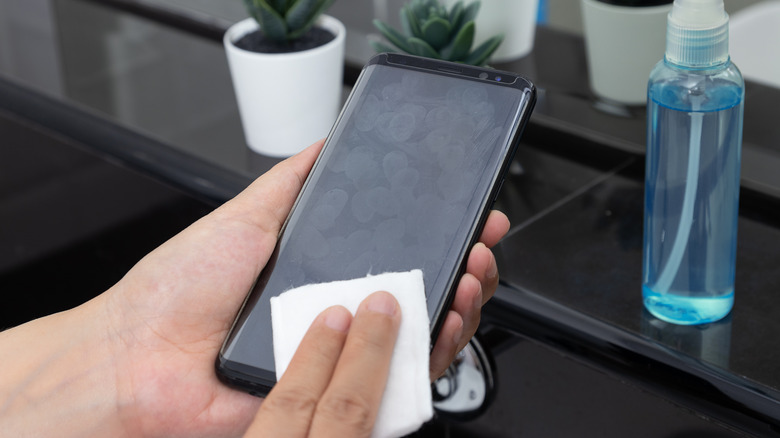
Your phone is likely dirtier than a public doorknob, and sanitising it matters — but the wrong cleaner destroys the oleophobic anti-fingerprint coating on the screen. Use 70% isopropyl alcohol sprayed onto a microfibre cloth, never directly onto the device, and wipe gently. Keep two cloths: one with a little texture for removing grit, one soft suede-style for polishing oils away.
Avoid bleach, hydrogen peroxide, and window cleaners — they strip the oleophobic coating instantly, leaving the screen permanently smudge-prone and high-friction. For a quiet earpiece speaker clogged with face oils, dip a soft toothbrush in a tiny amount of isopropyl alcohol and brush the grille gently; the alcohol dissolves the oils and the bristles lift the debris.
Performance Habits: Restarts, Lite Apps, and Connectivity
Restart the phone weekly. It clears temporary processes, kills rogue background tasks, and lets the OS run minor self-diagnostics — a restart every few days prevents most mysterious slowdowns. Ignore aggressive “RAM booster” and task-killer apps; the operating system manages memory better than they do, and force-killing apps usually wastes more battery on reloads.
Be deliberate about connectivity: turn off Wi-Fi, Bluetooth, GPS, and NFC when not in use, since constant background scanning wakes the phone and drains the battery. Wi-Fi is gentler on the battery than mobile data, so prefer it at home and work. On public Wi-Fi, use a VPN and avoid banking or payments on unencrypted networks. And when the time does come to move on, browse our comparison of the best Android phones of 2026 for a worthy upgrade.
Replace the Battery, Not the Phone
The decision to upgrade should be driven by facts, not frustration. Replace the battery when health drops below 80%, the phone needs two charges a day, or an authorised service centre quotes a repair far cheaper than a replacement. A fresh cell in a healthy body buys years.
Upgrade only when security updates stop completely, essential apps no longer support your device, repairs cost more than half a replacement, or performance genuinely cannot meet your needs. For most well-maintained phones, that point arrives after five years or more. And when it does, if photography is your priority, our roundup of the best camera phones will point you at the strongest options available.
Your Monthly 15-Minute Maintenance Routine
Do this once a month and your phone gains years of life.
Week 1 — Storage cleanup (5 minutes): run a cleaner app’s recommendations, clear large chat-app media and old downloads, delete blurry and duplicate photos, and empty the downloads folder.
Week 2 — Apps (5 minutes): update all apps, uninstall anything unused for 30+ days, clear heavy app caches, and confirm storage is under 80% full.
Week 3 — Battery and performance (3 minutes): check battery health in Settings, look at Battery Usage for abnormal drain, restart the phone, and inspect the charger and cable for fraying.
Week 4 — Physical and security (2 minutes): check the charging port for lint, inspect the screen protector and case for damage, and run a Play Protect security scan.
Should You Bother With All This?
Yes — unequivocally. Battery care alone can be the difference between a phone that dies at two years and one that thrives at five. Add storage discipline, physical protection, clean ports, current software, and a fifteen-minute monthly routine, and you have covered everything that actually ends a phone’s life early. The average phone can easily serve four to five years with just this level of care.
Start today with the two highest-impact moves: enable your phone’s optimised charging limit and clear 15% of storage free. Everything else compounds from there.

Frequently Asked Questions
Is fast charging bad for my phone battery?
Fast charging itself is not the problem — the heat it generates is. Used occasionally with a quality charger, it causes minimal harm. Used constantly, especially while gaming, it keeps the battery hot and accelerates wear. For daily overnight charging, slow charging is gentler and better for long-term battery health.
Can I use compressed air to clean my phone speakers and charging port?
Only with extreme caution. Short, controlled bursts aimed solely into the charging port are acceptable after loosening debris with a pick. Never blast air directly at microphone holes or speaker grilles — the pressure can rupture waterproof membranes and diaphragms. A soft brush or cleaning putty is the safer choice for speakers.
How often should I restart my smartphone?
A weekly restart is ideal. It clears temporary processes and RAM, kills rogue background apps that drain the battery, and forces the operating system to run minor self-diagnostics and cache maintenance. If the phone feels sluggish, a restart is always the first fix to try.
Does dark mode actually save battery?
Yes — on OLED and AMOLED screens, which most 2026 phones use. Dark mode turns individual pixels off to display black, which uses significantly less power than lighting the whole screen for white backgrounds. It also reduces burn-in risk on static elements.
How do I fix a quiet earpiece speaker?
It is almost certainly clogged with face oils and makeup. Dip a soft toothbrush in a tiny amount of 70% isopropyl alcohol and gently brush the earpiece grille — the alcohol dissolves the oils while the bristles lift the dirt out. Do not poke anything sharp into the grille.
Is charging overnight bad for the battery?
Modern phones have overcharge protection, so the fire risk is negligible. The real issue is the battery sitting at 100% for hours, which stresses the chemistry and speeds up degradation. Best practice: charge to around 80% before sleep, or enable Adaptive or Optimised Charging so the phone holds at 80% until near your wake-up time.
Should I use phone-cleaner or RAM-booster apps?
Usually not. The operating system manages RAM and storage more efficiently than third-party cleaners, and aggressive cleaner apps often show excessive ads, consume resources, or delete useful data. Use the phone’s built-in storage tools first, and clear caches manually when needed.
How much free storage should I keep on my phone?
Keep at least 10–20% of total storage free. This gives the operating system room for updates, cache files, and normal operation. Below that, expect lag, app crashes, and failed updates. If you are constantly near the limit, back photos up to the cloud and uninstall unused apps.
Can a five-year-old phone still be safe to use?
It can be, provided the manufacturer still ships security updates and your essential apps remain supported. Once security patches stop entirely, risk rises even if the hardware works fine — that is the genuine signal it is time to upgrade, not just slower performance.
My old phone has become slow — what can I do without replacing it?
Reduce animation speed to 0.5x in Developer Options, uninstall unused apps, keep storage below 80% full, switch to lite versions of heavy apps, clear app caches, and restart the phone regularly. As a final step, back everything up and perform a factory reset — it is free and often makes the phone feel practically new.
Is a tempered glass screen protector really necessary?
Absolutely. A quality tempered glass protector absorbs impacts and cracks itself instead of your display, potentially saving a screen repair costing ten times more. Replace it every 6–12 months as scratches build up, and pair it with a raised-edge case for the best protection.
Is it safe to put an overheating phone in the fridge or freezer?
Absolutely not. Sudden temperature changes cause internal condensation, and that moisture can damage the circuit board. Instead, remove the case, move the phone to a cool shaded room, close heavy apps, and let it cool down gradually.
Does a screen protector affect touch sensitivity?
A high-quality tempered glass protector has minimal impact on touch response. Cheap plastic films are more likely to deaden sensitivity. Stick with reputable mid-range tempered glass — it offers the best balance of protection and responsiveness.
Where should I get my battery replaced?
An authorised service centre is the best option: it installs a genuine battery and provides a warranty. A trusted local repair shop is cheaper, but battery quality is harder to verify. Either way, choose a reputable technician — a fresh, genuine battery is one of the smartest investments you can make in an ageing phone.
